Zum Hauptinhalt springen

EN

I get an error when installing the Setup.exe

If this error happened after 2020.03.08, it probably has to do with a prerequisite file that could not be downloaded during the setup.

To proceed, perform the following steps:

Download, unzip and install this file: SSCE x86

Then download, unzip and install this file: SSCE x64

If there are any instructions to restart the computer, please follow them.

Finally, rerun the setup.exe in the Aligned Elements install package to complete the installation.


Synchronize and Force Update buttons are not visible in the Aligned Elements Word Add-In Toolbar

Aligned Elements uses content controls in order to insert information in MS Word documents. The content of these content controls can be synchronized by clicking "Synchronize" or "Force Update" in either:

  • The toolbar in the Aligned Elements Word Add-In
  • The Action dropdown in the file Object in the Aligned Elements UI

Content Controls may be placed in:

  • The Header of the Word Document
  • The Body of the Word Document
  • The Footer of the Word Document

Due to technical constraints in MS Word, it is not possible for Aligned Elements to synchronize/update content controls in headers and footers in Word Documents. 

Furthermore, having content controls in the header or footer can sometimes lead to unforeseen errors when synching/updating the body of the Word documents.

To prevent this, the "Synchronize" and "Force Update" buttons are, as of Aligned Elements V3.0 SP 1, no longer available in the Word Add-In toolbar when the Word document contains content controls in header or footer.

It is still possible to synchronize/update content controls in headers and footers, when performing these actions from the Action dropdown in the File Object.

Error "The system cannot find the file specified." when clicking on word document link in a File Attribute (Aligned Elements Windows Client)

Problem: when clicking on the blue File Attribute link to open a Word Document, the error "The system cannot find the file specified." is displayed and MS Word does not open, even though MS Word is installed on the computer. 

Solution: this error might occur if the Windows Operating System cannot find the WinWord.exe file on your computer, needed to start Word.

Do the following checks to verify this problem:

Check 1) Click the Windows Button + R to open a Run window. Type "WINWORD.EXE" in the text field in the Run window and click OK. If MS Word does not start, then this is another indication that Windows cannot find the WinWord.exe file.

Check 2)  Click the Windows Button + R to open a Run window. Type "regedit" in the text field in the Run window and click OK. This will open the Registry Editor. Navigate to the path "HKEY_LOCAL_MACHINE\SOFTWARE\Microsoft\Windows\CurrentVersion\App Paths\Winword.exe". If this location does not contain 4 entries (but only an empty string), then this is another indication that Windows cannot find the WinWord.exe file.

To find where MS Word is installed on the computer, open the start menu and find the Word icon. Right-click on the word icon and select "Open File Location" or More => Open File Location in the context menu. This will open the file location of the Word shortcut. Right-click on the word shortcut and select "Properties" in the context menu. In the Shortcut tab page, find the Target text field which contains the path to the WinWord.exe.

Use this win word exe path to update the Registry for the registry path defined above, using the following pattern:


Word_App_Path.png 


Strange Word Add-in display in Windows 10, version 20H2

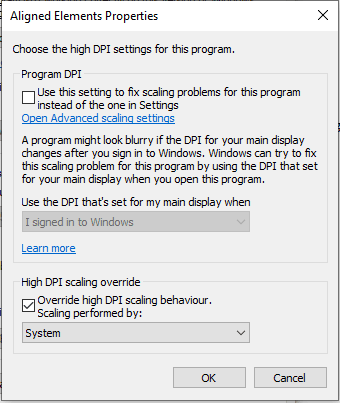
Word documents and the Word Add-in displays in an awkward manner in Windows 10, version 20H2

How to solve it:

1) Find the Aligned Elements shortcut

2) Display Properties => Compatibility Tab

3) At the bottom of the tab click "Change high DPI settings"

4) At the bottom of the displayed dialog, in the section "High DPI scaling override", if the check box for "Override high DPI scaling" is selected, select "System" (and not e.g. "System (Enhanced)") in the dropdown.

Cannot uninstall a VSTO Customisation

If a VSTO customization cannot be uninstalled with the regular Control Panel - Apps & Features dialog, then access the "old" Programs and Features Dialog by clicking "Programs and Features" under the section "Related Settings" in the Apps & Feature dialog of the Control Panel. In this dialog, the VSTO customization can be uninstalled.

Modulare Risikoanalyse

Um die Kosten gering zu halten und dennoch der Komplexität der Entwicklung eines modernen Medizingerätsgerecht zu werden, setzen immer mehr Firmen einen modularen Ansatz ein. Die Risikoanalyse ist eine guter Kandidat für dieses modulare Vorgehen.

pjur

  • Name: Andrea Paulus
  • Position: Customer Service, Product & QM Support

We benefitted by being able to create risk analyses for various product groups quite quickly and easily. We could now focus more on the content, and leave the form to the system.

Tecan

  • Name: Christoph Karthaus
  • Position: R&D Manager

Thanks to the Linked projects-feature, we are able to reduce the duplication of module documentation to a minimum.

Levitronix

  • Name: Victor Steinacher
  • Position: Project Manager

I can sincerely recommend Aligned Elements to any Medical Device company looking for a single tool to manage requirements, specifications, risks and design reviews.

Sony

  • Name: Claes Nilsson
  • Position: Master System Engineer

Aligned Elements supports a structured way to, starting from requirements, create a traceable set of documentation through the whole lifecycle.